Your customers don’t care where your agents work. They only care whether someone answers quickly and resolves their issue.
What makes that difficult is the cost and complexity of running a traditional call center. A virtual call center can help businesses maintain a balance between cost and quality.
That’s why businesses need calling and collaboration in a single platform, and Microsoft Teams offers that, especially for organizations that are already using Microsoft 365. But the question is: how do you set up a remote call center?
In this guide, you’ll learn the steps to set up a virtual call center with Microsoft Teams Phone, including the licensing requirements, configuration steps, key features, and best practices for managing remote teams.
What Is a Virtual Call Center and How It Differs from a Traditional One
A virtual call center is a customer service operation where agents work remotely using cloud-based software instead of a centralized, on-premise setup. Calls, queues, and routing all happen over the internet rather than through physical hardware.
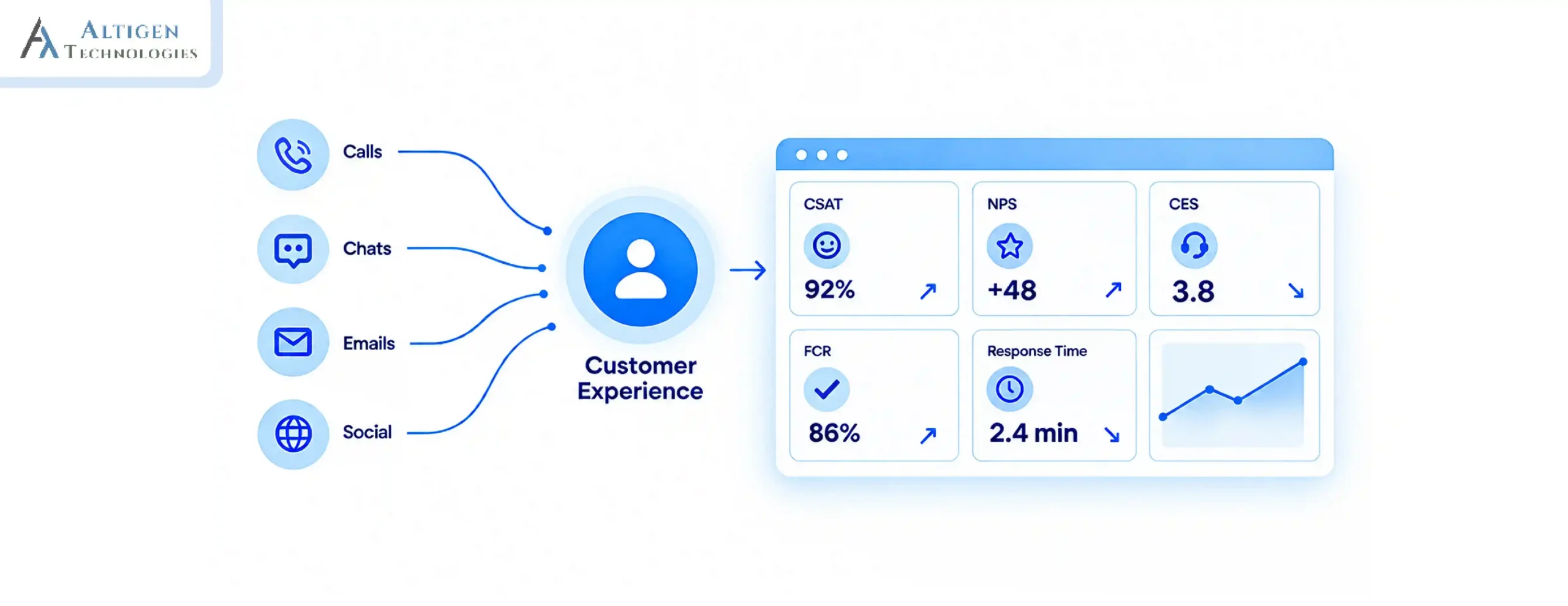
Virtual call centers also provide a foundation for a broader omnichannel contact center, where customer interactions are managed through voice calls, chat, email, messaging apps, and other digital channels within a single platform.
Key Differences in Infrastructure, Cost, and Flexibility
Traditional call centers require physical office space, on-premise PBX hardware, and desk phones for every agent. A virtual contact center eliminates that overhead and agents can work from anywhere. The infrastructure lives in the cloud. This reduces setup costs significantly and makes scaling up or down much faster.
Suggested Reading: A Complete Guide to Migrating to Cloud Contact Center
Why Use Microsoft Teams Phone System for Your Virtual Call Center
For organizations already using Microsoft 365, Teams Phone is the most logical starting point. It brings calling directly into the same platform your teams already use for chat, meetings, and file sharing, removing the need for a separate phone system.

1. Built-In Features That Support Call Center Operations
Teams Phone includes call queues, auto attendants, call recording, voicemail, and real-time presence indicators. These cover the core needs of a basic to mid-level virtual call center without requiring a third-party platform.
2. Cost Advantages Over Remote Call Center Software
Organizations switching to Teams Phone have reported telecom cost reductions up to 78%. For businesses already on Microsoft 365 E5, the Phone System license is included. For E3 users, it is available as a $10 add-on per user.
3. Integration with Existing Microsoft 365 Tools
Teams Phone connects natively with Outlook, SharePoint, and Dynamics 365. Agents can pull up customer records, log call notes, and schedule follow-ups without switching between platforms. This tight integration reduces switching tools and keeps agent workflows in one place.
What Do You Need Before You Set Up a Contact Center on Teams
Getting the setup right starts before you touch the admin center. A few things need to be in place first.
1. Microsoft Teams Phone Licensing Requirements
You will need one of the following:
- Microsoft 365 E5: Phone System included
- Microsoft 365 E3 or Business plans: Add Microsoft Teams Phone Standard at $10/user/month
- Calling Plan: Required to assign phone numbers unless you use Direct Routing or Operator Connect through a third-party carrier
2. Hardware and Headset Recommendations
Agents do not need desk phones. A computer with a headset works well for most setups. Recommended options include:
- USB or Bluetooth headsets certified for Microsoft Teams (Jabra, Poly, Sennheiser)
- Teams-certified desk phones for agents who prefer a traditional setup
- A reliable webcam for supervisors who run regular team check-ins
3. Internet and Network Requirements for Remote Agents
Call quality depends heavily on connection stability. Each agent should have:
- A minimum of 1.5 Mbps upload and download speed dedicated to calls
- A wired ethernet connection where possible, especially for high-volume agents
- QoS (Quality of Service) settings configured on their router to prioritize Teams traffic
How to Set Up a Virtual Call Center with Microsoft Teams Phone (Step by Step)
Setting up Teams Phone involves six configuration steps inside Microsoft Teams Admin Center.

Step 1. Enable Microsoft Teams Phone in Admin Center
Log into the Microsoft 365 Admin Center, navigate to Billing > Licenses, and assign the Teams Phone Standard license to relevant users. Once licensed, users can access Teams Phone capabilities, and administrators can configure calling features through the Teams Admin Center under Voice settings.
Step 2. Assign Phone Numbers to Agents
In the Teams Admin Center, go to Voice > Phone Numbers. You can:
- Purchase new numbers directly from Microsoft (available in select countries)
- Port existing numbers from your current carrier
- Use Direct Routing or Operator Connect to bring numbers from a third-party carrier
Once you have your numbers, assign them to individual agents for direct inward dialing or to shared resource accounts that will be used for call queues and auto attendants in the next steps. If you’re porting existing business numbers, start the request early, as the process can take several business days depending on your carrier.
Step 3. Configure Auto Attendants and Call Queues
Auto attendants handle incoming calls with custom greetings and routing menus. Call queues hold callers in line and distribute them to available agents.
Set these up under Voice > Auto Attendants and Voice > Call Queues in the Teams Admin Center.
Assign each queue a resource account with its own phone number or extension.
Step 4. Set Up Call Routing Rules
In the Teams Admin Center, go to Voice > Call Queues and define how incoming calls are distributed across your team. Teams Phone offers three routing methods:
- Round robin: Distributes calls evenly across agents
- Longest idle: Routes to the agent who has been waiting the longest
- Attendant routing: Rings all available agents simultaneously, connecting the call to whoever answers first
- Set overflow rules for when queues exceed a set wait time or agent availability drops
Step 5. Add and Onboard Your Remote Agents
Assign agents to call queues through the Teams Admin Center. Each agent needs the Teams Phone license and should be added as a member of the relevant queue. Walk agents through:
- Setting their availability status in Teams
- Using the Calls tab to manage incoming and outgoing calls
- Transferring, holding, and escalating calls within the Teams interface
Step 6. Test the Setup Before Going Live
Always test every call flow before production deployment to catch issues early:
- Call each queue number and verify routing works as expected
- Test overflow and timeout scenarios by simulating high call volumes
- Confirm voicemail, call recording, and transfer functions are working correctly
- Check call quality metrics in the Teams Admin Center under Analytics and Reports > Call Quality Dashboard
- Have agents test from their actual remote setups, including home networks and headsets
Deployment Checklist Before Going Live
- All required licenses assigned
- Phone numbers provisioned or ported
- Auto attendants tested
- Call queues verified
- Overflow rules configured
- Voicemail enabled
- Call recording policies validated
- Remote agents tested on production networks
Must-Have Microsoft Teams Features for Running a Virtual Call Center
The key feature your Teams phone solution must have to a virtual call center includes, Call Queues, auto attendants, voicemail and call recording, integration with CRM tools and real-time analytics. Let’s look at them in detail.
1. Call Queues and Auto Attendants
These two features are critical for any Teams-based virtual call center. Auto attendants handle first-contact routing, while call queues manage wait times and agent distribution. Both are configurable with business hours, holiday schedules, and custom hold music.
2. Real-Time Analytics and Call Reporting
The Teams Admin Center provides usage reports covering call volume, queue wait times, queue SLA, agent availability, and abandoned calls. Supervisors can monitor live queue activity through the Queues App in Teams, which shows real-time agent status and call metrics on a single dashboard.
3. Voicemail and Call Recording
Teams Phone includes cloud voicemail with transcription powered by Azure. Call recording can be enabled at the policy level, allowing all calls or selected queues to be recorded automatically and stored in SharePoint or OneDrive for compliance and quality review.
4. Integration with CRM Tools
Teams connects with Dynamics 365 natively and supports third-party CRM integrations through the Microsoft AppSource ecosystem. Agents can see customer context before answering, log calls directly into CRM records, and reduce after-call work without leaving Teams.
4 Best Practices for Managing a Remote Call Center on Microsoft Teams
Once your virtual call center is up and running, adopting the right management practices can improve agent performance, strengthen collaboration, and deliver a better customer experience.
1. Setting Availability and Shift Schedules
Use Team Shifts (available in Microsoft 365 Business and Enterprise plans) to create and manage agent schedules. Agents clock in and out through Shifts, which automatically updates their presence status in Teams so call queues reflect actual availability in real time.
2. Monitoring Agent Performance
Use the Queues App and Teams Admin Center reports to track metrics like:
- Average handle time and call duration
- Missed and abandoned call rates
- Agent occupancy
- Response time per agent
- Service levels across call queues
Share these metrics with agents during regular one-on-one conversations instead of using them for constant monitoring. Transparency in performance data helps build trust and improves results.
3. Keeping Remote Teams Accountable
Schedule brief daily standups over Teams video, not just text. Use shared channels to post queue updates, flag escalations, and recognize strong performance. Agents working remotely without regular touchpoints tend to disengage faster, which shows up directly in call quality and response metrics.
4. Start with a Pilot Group
Deploy Teams Phone to a small group of agents before rolling it out across the organization. A pilot helps identify routing issues, training gaps, and configuration changes before they affect the entire support team.
Common Mistakes to Avoid When Setting Up a Virtual Call Center on Microsoft Teams
Small implementation mistakes can affect call quality and agent productivity. Avoid these common issues before going live.
- Skipping end-to-end Testing: Test every call flow, including transfers, overflow routing, and voicemail, before handling customer calls.
- Using Incompatible Devices: Incompatible devices can cause poor audio quality, connection issues, and an inconsistent calling experience for both agents and customers.
- Ignoring Network Readiness: Poor internet connectivity and missing QoS settings can result in dropped calls, jitter, and poor voice quality.
- Not Training Agents: Inadequate training can increase call handling times, inconsistent customer experiences, and more escalations during the early stages of deployment.
Limitations of Microsoft Teams as Remote Call Center Software
Teams Phone covers the essentials, but it has gaps compared to purpose-built remote call center software:
- Lack of ability to automatically analyze conversations
- Limited workforce management tools (scheduling through Shifts is basic)
- Reporting lacks the depth of platforms like CoreEngage, Genesys or Five9
- No built-in customer satisfaction surveys or post-call feedback tools
- AI-assisted call routing and sentiment analysis require third-party add-ons
Teams Phone is a good fit if you:
- Handle moderate call volumes.
- Already use Microsoft 365.
- Need basic vs. core call center capabilities
Consider a Teams native contact center solution like CoreEngage if you need:
- Omnichannel capability
- CRM integration
- Advanced routing
- Comprehensive supervisor controls
- Native AI tools for advanced insights and staffing
Suggested Reading: Guide to Choosing Teams Call Center Solutions
Conclusion
Microsoft Teams Phone gives businesses a practical starting point for building a virtual call center, especially when the organization already runs on Microsoft 365. The setup is straightforward, the costs are manageable, and the integration with existing tools reduces friction for agents and supervisors alike.
For teams that need more, Altigen CoreEngage extends Teams Phone with enterprise-grade contact center capabilities including advanced routing, real-time analytics, outbound dialing, and workforce management, all inside the Teams interface your team already uses daily.
Schedule a demo to learn how CoreEngage helps you build and manage a high-performing virtual call center on Microsoft Teams.

Frequently Asked Questions
Yes, Microsoft Teams Phone can replace an on-premises PBX by providing cloud-based calling, voicemail, call forwarding, and business phone features without dedicated telephony hardware.
Yes, small businesses can use Teams Phone to manage call center operations without investing in a traditional call center infrastructure.
The basic deployments can be completed within a few days, while number porting, integrations, and testing may take several weeks.
Yes, businesses can add or remove licensed users as staffing needs change, making Teams Phone suitable for organizations with seasonal or fluctuating call volumes.
Yes, Teams Phone supports both inbound and outbound business calling, making it suitable for customer service, internal help desks, and general business communications.