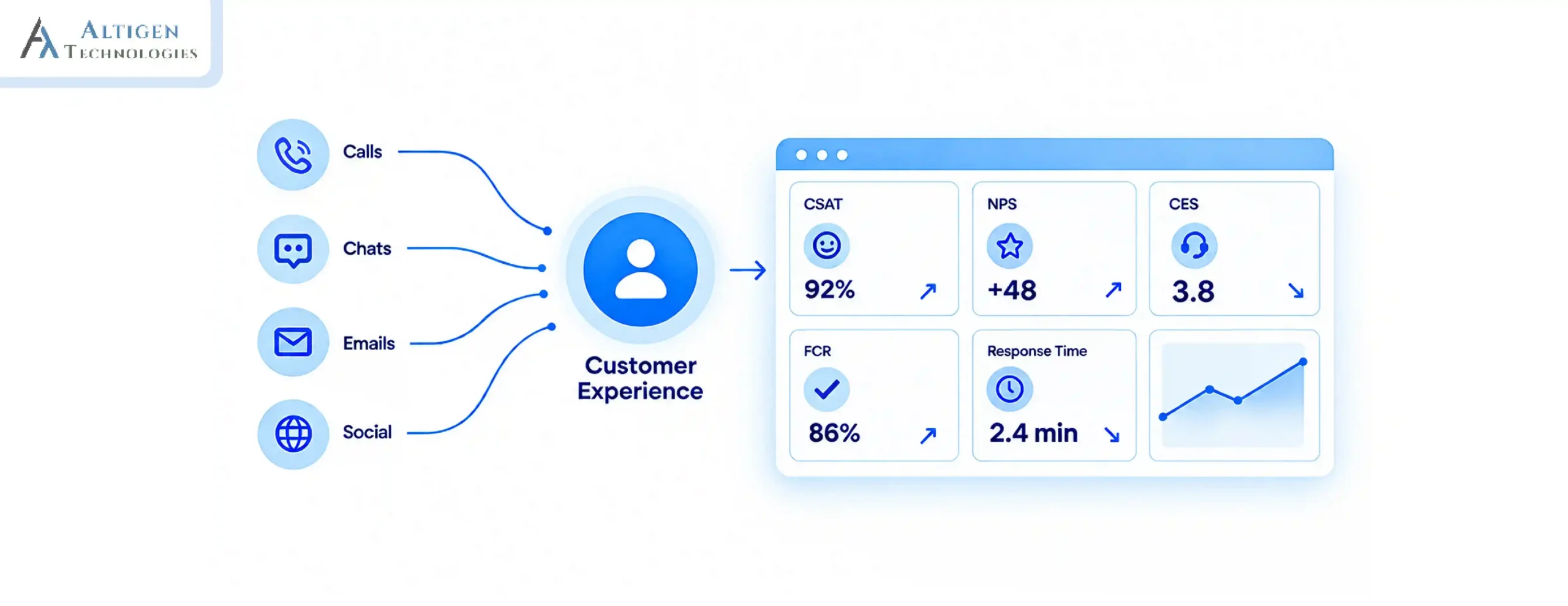
A customer emails your support team on Monday, follows up on chat Tuesday, and calls on Wednesday. By the time your agent picks up, they have zero context from the previous two interactions. The customer explains everything from scratch again. This is what happens in a multichannel contact center.
| TL;DR: The 30-Second Takeaway The Problem: Disconnected customer support channels force agents to switch tools to get the context and customers have to repeat themselves. The Reality: Microsoft Teams supports customer communication, but without routing, CRM integration, and shared customer context, businesses operate in a multichannel environment. The Fix: Deploy a Teams-integrated omnichannel contact center with CRM integration, intelligent routing, AI automation, and unified customer context. |
Many businesses still run disconnected systems where agents lack customer context, and customers repeat information at every step. According to Salesforce, 73% of customers expect companies to understand their unique needs and expectations.
This is why organizations are building omnichannel customer service platforms on Microsoft Teams. But Teams alone does not create a seamless customer experience. For successful deployments, you need routing architecture, CRM integration, AI automation, and context continuity across channels.
In this guide, we explain how to deploy and optimize omnichannel contact centers using Microsoft Teams.
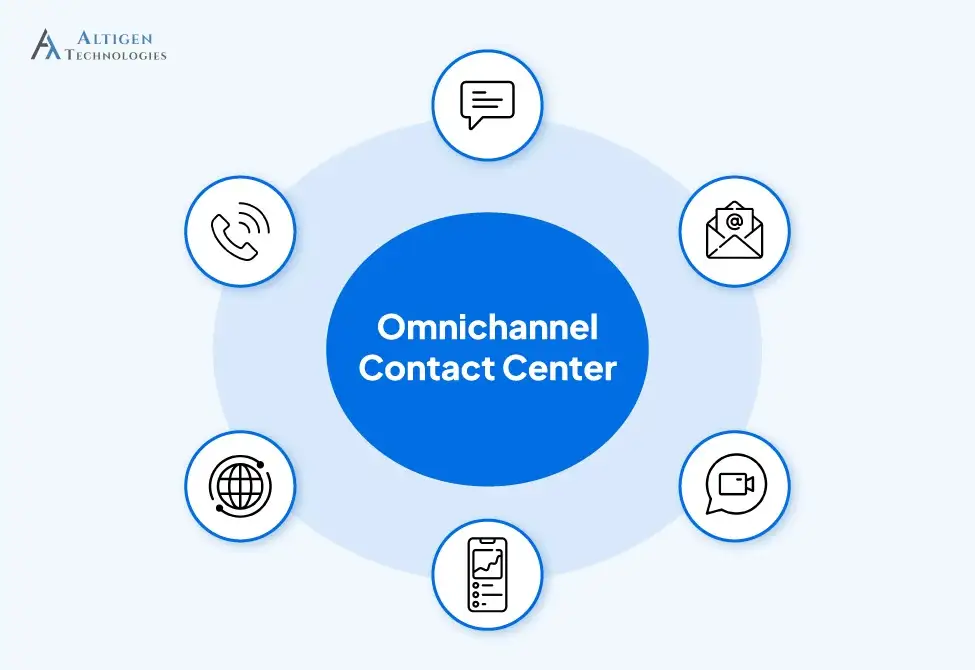
What Is an Omnichannel Contact Center?
An omnichannel contact center allows customers to move between communication channels without losing conversation history or context. For example, a customer may start with web chat, continue through email, and later escalate to a voice call.
Companies with strong omnichannel strategies retain approximately 89% of their customers, compared to 33% for businesses with poor omnichannel engagement.
Why Businesses Are Building Contact Centers on Microsoft Teams
Most businesses already pay for Microsoft 365. Running a separate contact center stack on top of it means paying twice, for overlapping infrastructure and duplicate integrations. Building an omnichannel contact center on Teams eliminates that redundancy.
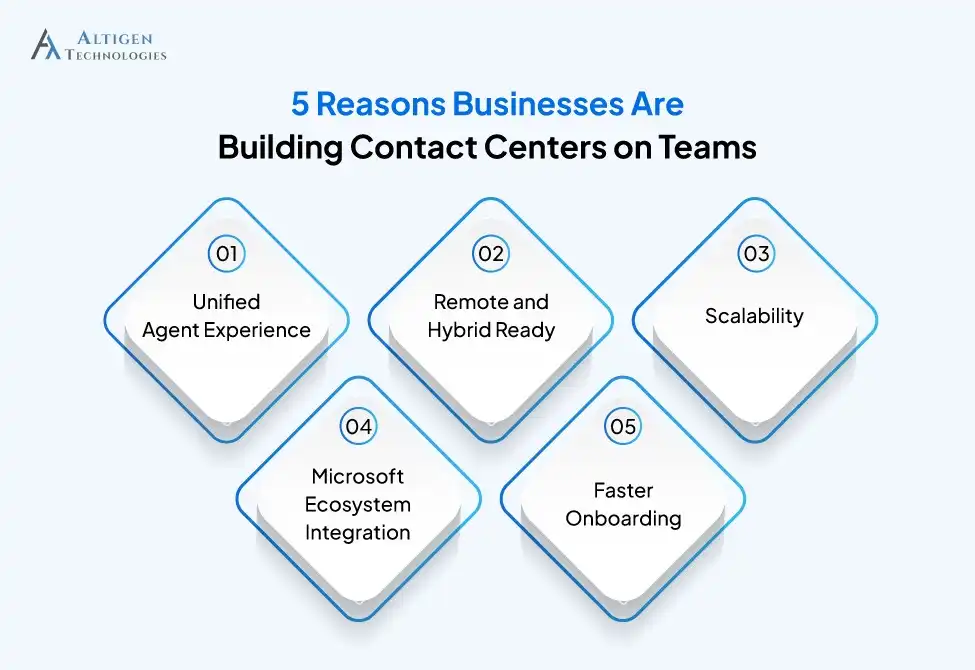
Beyond cost, Teams offers real operational advantages:
- Unified agent experience: Internal collaboration and customer interactions happen in one interface, reducing context-switching and cognitive load.
- Remote and hybrid ready: No VPN dependency, no hardware lock-in. Agents connect from anywhere.
- Scalability: Adding or removing agents requires a license update, not a hardware order.
- Microsoft ecosystem integration: Dynamics 365, Power Automate, Azure, and Copilot all connect natively.
- Faster onboarding: Agents already familiar with Teams adapt to contact center workflows significantly faster than they would on an entirely new platform.
The Microsoft ecosystem also creates integration advantages. Businesses can connect Teams with:
- Azure
- Power Automate
- Power BI
- Microsoft Copilot
Also Read: How to Transform Microsoft 365 into Omnichannel Contact Center
Microsoft’s Three Contact Center Integration Models
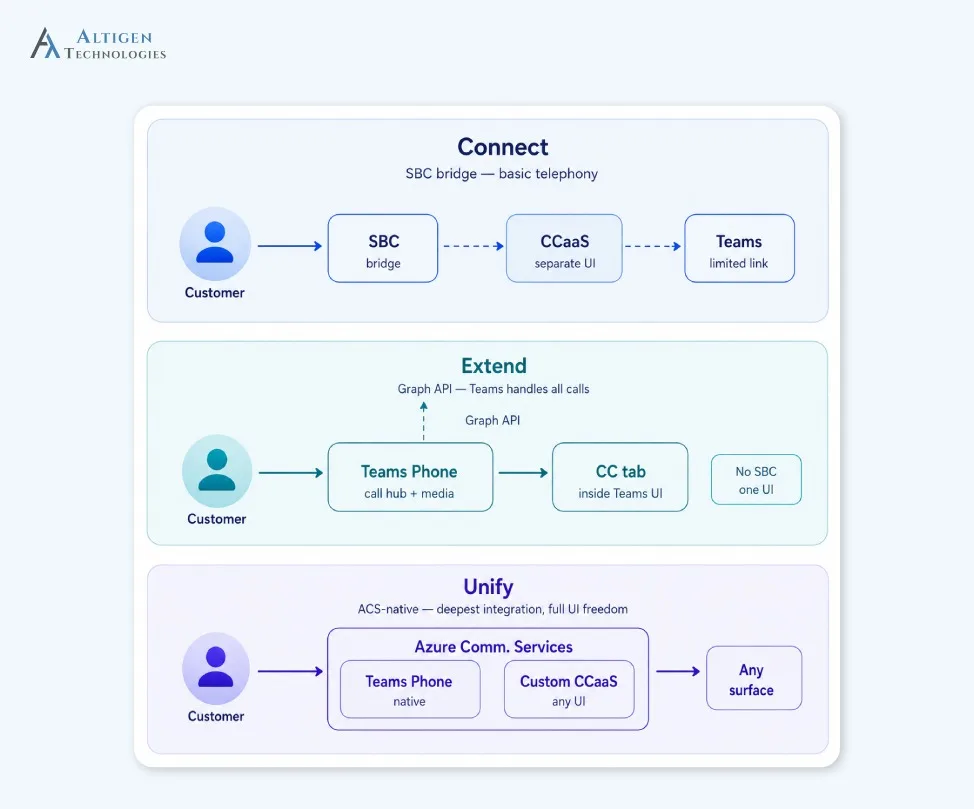
Microsoft supports three primary contact center integration approaches: Connect, Extend, and Unify. The one you choose determines how deeply Teams connects to your contact center, and how much rework you’ll face later if you choose wrong.
1. Connect Model
The Connect model links an external contact center platform to Teams using direct routing and session border controllers.
In this setup:
- Teams acts mainly as a communication layer
- Routing and reporting remain external
- Existing CCaaS platforms continue managing workflows
This model suits businesses with existing contact center investments they can’t replace immediately. However, agents often work across multiple interfaces, which limits workflow efficiency.
2. Extend Model
The Extend model integrates directly into Teams using Microsoft Graph APIs and Cloud Communications APIs. Routing, presence syncing, and communication workflows operate inside the Teams environment. Agents remain within Teams instead of switching between separate contact center applications.
This approach is usually preferred by businesses seeking a deeper Teams-native experience without rebuilding their infrastructure entirely.
3. Unify Model
The Unify model is built on Azure Communication Services and provides the deepest Microsoft-native integration path. However, because it is new, there are limitations to the functions available.
This architecture is better suited for organizations building new customer engagement infrastructure from scratch. There will be advantages to using Unify in the long-term as the model matures.
| Scenario | Recommended Model |
| Existing CCaaS, can’t replace yet | Connect |
| Deep Teams-native experience needed | Extend |
| Building new infrastructure from scratch | Extend or Unify |
| Enterprise with high compliance requirements | Extend or Unify |
| SMB already on Microsoft 365 | Extend |
Step-by-Step: How to Deploy an Omnichannel Contact Center Using Microsoft Teams
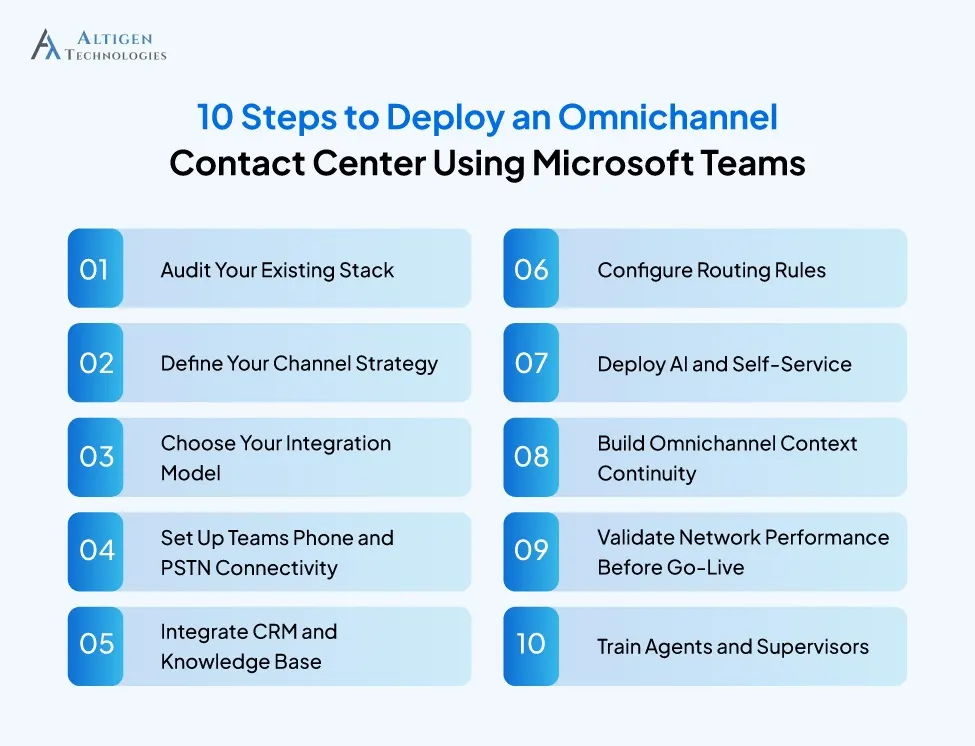
Step 1: Audit Your Existing Stack
Many deployment issues come from incomplete discovery phases where operational bottlenecks are not identified early. Before deployment, businesses need a clear assessment of their current communication stack.
This includes reviewing:
- Existing CCaaS environment
- CRM platforms
- Ticketing systems
- Communication channels
- Reporting workflows
- Integration dependencies
Step 2: Define Your Channel Strategy
One of the most common mistakes in omnichannel deployments is implementing every channel simultaneously because they do not deliver equal business value. Organizations should identify:
- Which channels do customers actually use
- Which channels create the highest support volume
- Which interactions require live agents
- Which interactions can be automated
Voice and chat are the primary customer support channels for most businesses, followed by email, SMS, and social messaging. A phased rollout makes optimization easier during early deployment stages.
Step 3: Choose Your Integration Model
The integration model should be selected before deployment work begins. A business with a large existing contact center environment may prefer a Connect approach initially, while organizations building newer infrastructure may benefit more from Extend or Unify models.
Step 4: Set Up Teams Phone and PSTN Connectivity
- Choose between Operator Connect and Direct Routing based on your carrier relationships
- Plan number porting early. It’s the most common source of go-live delays
- Standardize on Teams-certified headsets and hardware; consumer-grade equipment creates audio quality problems that no software can fix
Step 5: Integrate CRM and Knowledge Base
- Connect Salesforce, Dynamics 365, ServiceNow, or Zendesk so agents see customer history before the interaction starts
- Configure Power Automate workflows for automated ticket creation and routing triggers
- Set up context handover: when a call transfers, the customer’s full history transfers with it
Step 6: Configure Routing Rules
Build intent-based and skills-based routing before go-live. Configure overflow handling, after-hours routing, and callback options upfront, not as post-launch patches. Test against real contact scenarios before agents go live.
Step 7: Deploy AI and Self-Service
Leverage AI to assist agents, provide automated summaries and automate quality assurance. Configure conversational AI to handle frequently asked questions and appointment booking. According to McKinsey, organizations using advanced AI capabilities in customer assistance operations can reduce operational expenses by up to 40%.
Step 8: Build Omnichannel Context Continuity
This is the step that separates a multichannel contact center from an omnichannel one. Every channel interaction must feed into a unified customer record. If agents can’t see prior chat, email, and voice interactions before a conversation begins, the deployment is multichannel regardless of how many channels are live.
Step 9: Validate Network Performance Before Go-Live
Test against Microsoft’s recommended thresholds:
- Latency: under 150–200ms
- Jitter: under 30ms
- Packet loss: below 1–2%
Configure QoS tagging to prioritize voice and video traffic over background data. Use Azure ExpressRoute or SD-WAN for consistent performance at scale.
Step 10: Train Agents and Supervisors
Agents familiar with Teams adapt faster, but contact center workflows still require structured onboarding. Supervisors need equal attention during training. Reporting tools only create value when supervisors know how to interpret and act on the data.
6 Common Challenges Businesses Face During Omnichannel Contact Center Deployment
Even well-planned deployments can face challenges. Let’s look at the common challenges businesses face during omnichannel contact center deployment:
- Overestimating native Teams capabilities: Assuming Teams handles routing and omnichannel continuity out of the box is the most expensive misconception in contact center IT
- Fragmented CRM data: Context continuity only works if customer records are clean and consistently structured across systems
, - Rebuilding old routing problems in a new system: Migrating a broken IVR structure into Teams produces the same results; routing design should start from customer intent, not legacy menus
- Skipping workflow redesign: New software on top of broken processes doesn’t fix the process
- Low agent adoption: If the interface isn’t simplified for contact center use, agents create workarounds that undo the operational gains
- No reporting baseline at launch: Without baseline metrics, there’s no way to measure improvement after go-live
Many of these issues don’t become visible until customer experience and business performance are affected. Identifying early warning signs if your contact center is at risk can help you prevent these issues before they impact customer satisfaction.
What to Look for in a Teams Contact Center Platform
Before selecting a Teams contact center platform, you should review the features that impact agent efficiency and customer experience.
- Deep Teams Integration: The platform should support Extend or Unify integration models to create a seamless agent experience inside Microsoft Teams.
- Omnichannel Continuity: Ensure agents can view customer interaction history across voice, chat, email, and messaging channels from a single interface.
- CRM Compatibility: Look for native integrations with CRM and ticketing platforms so agents can access customer data without switching between systems.
- AI-Powered Automation: Features like real-time agent assist, intelligent routing, and automated after-call work help reduce manual effort and improve response times.
- Advanced Reporting and Analytics: Evaluate whether the platform provides real-time dashboards, channel-level analytics, SLA tracking, and customizable reports.
- Compliance and Security: Businesses in regulated industries should verify support for standards such as HIPAA, PCI-DSS, and GDPR based on industry requirements.
Also Read: Guide to Choosing Call Center Solutions for Teams
Conclusion
Microsoft Teams provides a strong foundation for customer communication, but building a successful omnichannel contact center requires more than voice and collaboration capabilities.
Altigen’s CoreEngage addresses these requirements within a Teams-native architecture, offering omnichannel routing, CRM integration, AI-powered workflows, and compliance recording without pulling agents out of the Teams interface.
If you are looking for an omnichannel contact center on Team, try CoreEngage. Schedule a demo today.
Frequently Asked Questions
Yes, unified agent workspace reduces system switching, improves access to customer history, shortens handling time, and allows agents to resolve issues faster.
Microsoft Teams provides voice, collaboration, and basic queue capabilities, but businesses need additional contact center software for omnichannel routing, CRM integration, AI automation and workforce management. Altigen’s CoreEngage transforms Teams into an omnichannel contact center platform.
Teams Phone supports business calling and PSTN connectivity and replaces on-premises PBX systems. A Teams contact center includes intelligent routing, omnichannel support, customer context visibility, automation, and agent management capabilities.
Omnichannel customer context allows agents to view a customer’s complete interaction history across voice, chat, email, and messaging channels from a single interface. This improves resolution speed, shortens handling time, and creates a more consistent customer experience across different channels.
Deployment timelines vary based on integrations, routing complexity, compliance requirements, and existing infrastructure. It can take several weeks to a few months when CRM integrations and AI workflows are included.