Your CRM knows the caller’s name, their open case, and the complaint they raised last. The agent picking up the phone knows none of it.
So the agent asks for an account number, searches another tab, and asks the customer to explain everything. Then they pull up the account details. It is a familiar experience that frustrates customers.
Salesforce research found that 56% of customers often have to repeat or re-explain information to different representatives.
Contact center CRM integration addresses this problem. It connects contact center software with a CRM system that stores customer records, so agents get the context when the interaction begins.
This guide covers methods, data mapping, an eight-step setup, testing, and conversation intelligence.
| TL;DR – A Quick Takeaway 1. Contact center CRM integration connects customer and interaction data so agents can access customer context, cases, and interaction history without switching between systems. 2. Choose the right integration approach for your workflows. Native connectors are suitable for standard use cases, while APIs and middleware offer more customization for complex data flows. 3. After integration, map data fields, define sync and security rules, test real workflows, and monitor accuracy, adoption, and integration performance. |
What is contact center CRM integration?
Contact center CRM integration connects your contact center software to your CRM so the two systems can exchange customer details, interaction history, and case information automatically. Agents can see who is contacting them before they answer, and the CRM records what happened once the conversation ends.
Each piece has a clear job. The CRM is the system of record for customer and case data. The contact center handles interactions, routing, and agent workflows. The integration is the connection that moves relevant information between them.
Without it, both systems still work, just separately. The agent becomes the integration, copying details from one screen to the other.
How does CRM and contact center integration work?
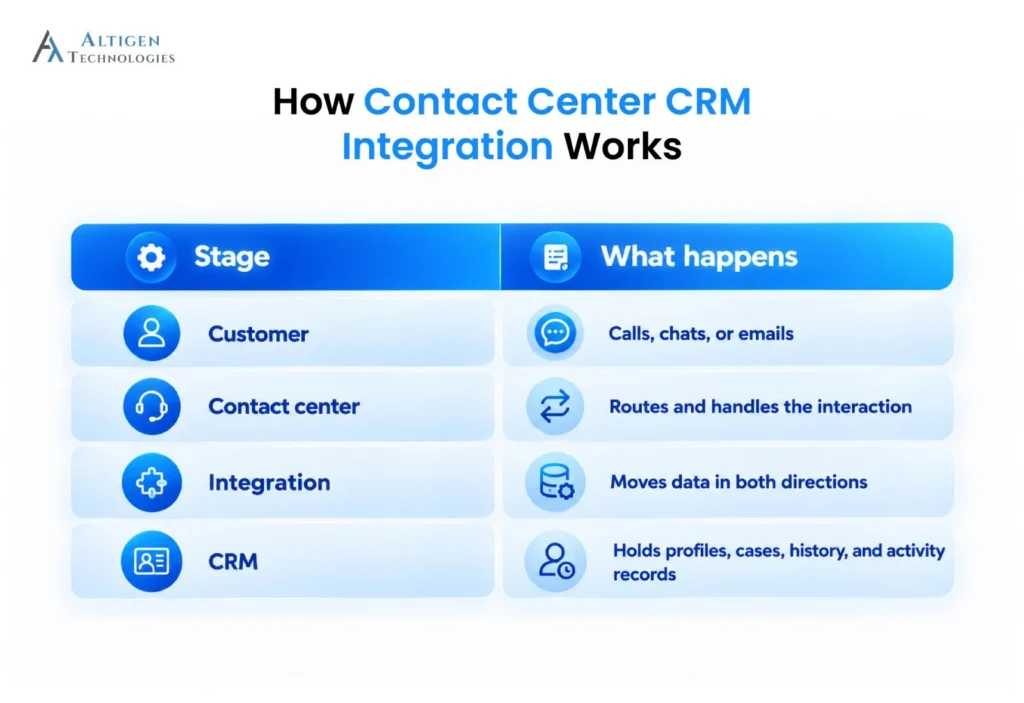
CRM and contact center integration works by exchanging customer, interaction, and case data between the two systems through a native connector, API, or middleware platform.
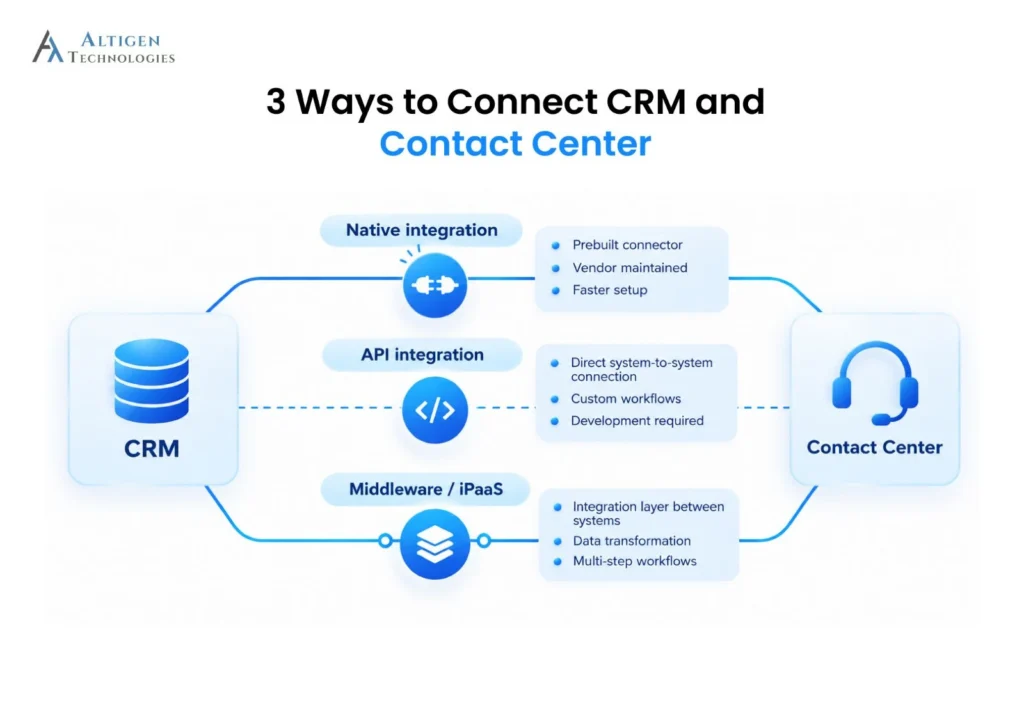
The three approaches differ in who builds and maintains the connection and how much control you have over the data flow.
1. Native CRM integrations
A native integration is a prebuilt connector that the contact center vendor builds and maintains for a specific CRM. Most include screen pops, click-to-call, interaction logging, case creation, and customer lookup.
Setup is faster and requires little custom development. However, support may be limited to certain CRM editions, workflows may follow the vendor’s design, and available capabilities can vary by CRM.
2. API-based integration
An API defines how one system can request data or perform actions in another system. A custom API integration uses these endpoints to look up customer records, create activities, update cases, and send interaction outcomes between the contact center and CRM.
Your team or a partner owns authentication, permissions, error handling, and rate limits, since most CRMs cap how many requests they accept in a given period. Custom work makes sense when no connector supports a workflow you need.
3. Middleware and integration platforms
Middleware sits between systems that have no direct connector. Integration platforms, often called iPaaS, convert data into the format each system expects, route it to the right place, and coordinate multi-step flows.
What data should you sync between your contact center and CRM?
Syncing everything creates clutter, and syncing too little leaves gaps. Decide field by field.
| Contact center data | CRM destination or use |
| Caller ID and contact details | Match an existing contact or create a new record |
| Call or interaction ID | Link the interaction to a customer, case, or activity |
| Call disposition | Update the outcome, status, or next action |
| Agent and queue | Record ownership and routing context |
| Transcript, summary, and sentiment | Attach insights to the activity or case, within access and retention rules |
| Case status and priority | Support follow-up workflows and routing |
Illustrative mapping. Actual fields depend on your CRM, contact center platform, and integration design.
Five decisions shape how that data behaves.
- One-way or two-way sync: One-way sync pushes data in a single direction. It works for logging calls but fails the moment an agent changes something the other system needs to see.
- Field mapping and normalization: The same data often looks different in each system. Phone numbers stored with a country code in one and without it in the other will never match until you standardize them.
- Record matching and duplicates: Decide how an interaction finds its record. Mature connectors make these choices explicit. HubSpot’s Dynamics 365 sync, for example, lets admins choose one-way or two-way sync and ignores capitalization and punctuation when matching on name fields.
- Field ownership: Give every field one system of truth. If both systems can edit case status, decide which one wins.
- Privacy and retention: Transcripts can contain sensitive details. Set who can see them in the CRM and how long they stay.
How to integrate contact center software with CRM
Here is a step-by-step guide to connect contact center tools with CRM systems.
1. Define the business goals and use cases
Before looking at integration options, identify where the current contact center and CRM workflows fall short. Are agents searching for customer records during calls? Are call notes being entered manually? Are cases missing interaction history? These gaps should determine what the integration needs to accomplish.
Common use cases include:
- Customer info before answering
- Calls linked to cases
- Interactions tied to leads
- Context for quality reviews
- Conversation data for reporting
Each workflow becomes a requirement. Skip this and you get a connection that works technically and changes nothing.
Turn each use case into a specific requirement. For example, “improve agent access to customer information” is too broad. A clearer requirement would be: “When an existing customer calls, the agent should see the contact, open cases, and recent interactions before answering.”
2. Audit your existing CRM and contact center systems
Take stock before choosing anything. Record your CRM edition and modules, your contact center’s supported channels, and any connectors, APIs, or integration tools already in place.
Then look hard at the data. Gartner research identifies inconsistency in data across sources as the most challenging data-quality problem and estimates that poor data quality costs businesses at least $12.9 million per year on average. Check for duplicate contacts, missing phone numbers, and mismatched formats now, because the integration will reveal these issues.
Finish by documenting current call logging, case management, and reporting workflows, plus the authentication, permission, and compliance rules that apply.
3. Choose the integration approach
No single approach suits every business. Choose based on the systems involved, the workflows you need, and how much control your team needs over the integration.
- Supported systems and features
- Required customization
- Implementation effort
- Data volume and sync frequency
- Ongoing maintenance
- Security and vendor support
A native connector is usually enough when you need standard workflows such as screen pops, click-to-call, interaction logging, or case updates. If the native connector does not support a required workflow, an API-based integration gives you more control over how data moves between the contact center and CRM.
Middleware becomes useful when several systems need to exchange data or when there is no direct connection between them.
For example, a business that only needs Salesforce contact lookup and call logging may not need a custom integration. A business that needs call outcomes to trigger different case workflows in Salesforce may need API-level customization.
4. Map data fields and define synchronization rules
Once the integration approach is clear, document exactly what data should move between the contact center and CRM. Avoid treating the integration as a simple “sync everything” exercise. Every field should have a purpose and a defined destination.
Turn your use cases into a written data-mapping plan that answers these questions:
- Which fields move between systems?
- Which system owns each field?
- Is the data one-way or two-way?
- How does the integration identify the correct customer or case?
- What happens when no matching record exists?
- How are duplicate records handled?
- What happens when an update fails?
- How long should interaction data, transcripts, or recordings be retained?
Share the answers with whoever builds the integration. When an update fails overnight, the retry and logging rules determine whether anyone is alerted.
5. Configure agent workflows
Design the integration around the tasks agents perform during each interaction. When a customer calls, the CRM should automatically surface the relevant contact, account, or case so agents do not have to search for it manually. Salesforce, for example, supports screen pops that can open customer, case, and order records when an interaction reaches an agent. This can reduce average handle time, improving customer experience.
6. Connect conversation intelligence capabilities
Conversation intelligence turns interactions into usable information. Connected to the CRM, those insights sit next to the customer record instead of in a separate tool.
- Summaries on case records
- Sentiment on each interaction
- Action items become tasks
- Recurring issues surface early
- Flagged calls for review
- Coaching from real conversations
Before switching it on, settle three things. Where each insight is stored, who can see it, and which CRM record it attaches to. A transcript linked to the wrong customer is worse than no transcript.
7. Test the integration before rollout
Do not test only the standard path where everything works as expected. A CRM integration can appear successful during a demonstration and still fail when records are missing, permissions differ, or an API becomes unavailable.
Build test scenarios around the workflows and exceptions you identified earlier:
- Existing customer calls in
- New contact, no record
- Case updated mid-call
- Call ends, activity logs
- CRM record changes externally
- API request fails
- Duplicate records exist
- Summary fails to attach
For each scenario, check permissions, data accuracy, sync delays, and whether the system recovers without manual help.
8. Launch in phases and monitor performance
Start with one team or one workflow. Train agents and supervisors on real scenarios, then watch integration errors, duplicate records, and agent feedback closely for the first few weeks.
Expand to more channels and teams once the first group trusts the data. Agents who stop double-checking the CRM are telling you it works.
Common contact center CRM integration challenges and how to address them
Most integration problems arise after launch. Here are the key challenges and how you can address them.
1. Duplicate and inconsistent customer records: Three records for one customer means the agent has to guess the right pop-ups.
Solution: Choose a unique identifier, such as a customer ID or a standardized phone number, and clean existing data before go-live.
2. One-way synchronization: One-way sync works until an agent updates something the other system needs.
Solution: If agents change case status or contact details during calls, those changes must reach the CRM, so confirm two-way sync for those fields.
3. Security and access control: Transcripts and recordings can hold card numbers, health details, or account information.
Solution: Use secure authentication, role-based permissions, and redaction so sensitive content reaches only the people who need it.
4. Integration failures and delays: APIs time out, hit rate limits, or reject malformed data.
Solution: Build in automatic retries, log every failed update, and set alerts so someone notices before a supervisor discovers a week of missing call records.
5. Low adoption among agents: If the integrated workflow takes more clicks than the old one, agents will work around it.
Solution: Keep flows simple, remove duplicate data entry, and train on real calls rather than feature tours.
How to measure the success of contact center CRM integration
Measure against the goals from step one, using a baseline captured before launch.
| Indicator | Question to ask |
| Manual data entry time | Has after-call typing dropped? |
| Screen pop accuracy | How often does the right record appear? |
| Logging completeness | Are calls, chats, and emails recorded correctly? |
| Case and task accuracy | Are the right follow-ups being created? |
| Sync failures | How often do records fail to update? |
| Agent adoption | Are agents using the integrated workflows? |
| Insight usage | Are summaries and signals used in reviews? |
| Service metrics | Have resolution, transfer, or FCR rates moved? |
Watch screen pop accuracy most closely, since displaying the wrong record can cause more problems than displaying none. Review at 30, 60, and 90 days, judging trends rather than the first week.
Service metrics should be interpreted carefully. First contact resolution and transfer rates also depend on staffing, training, and call mix, so the integration is one factor among several.
Final takeaway
Judge a CRM integration by the workflows it improves, not by a logo on an integrations page. Mapping, sync rules, and testing decide whether it holds up, and connected conversation insights deserve close attention. Define your use cases and test with real workflows before committing.
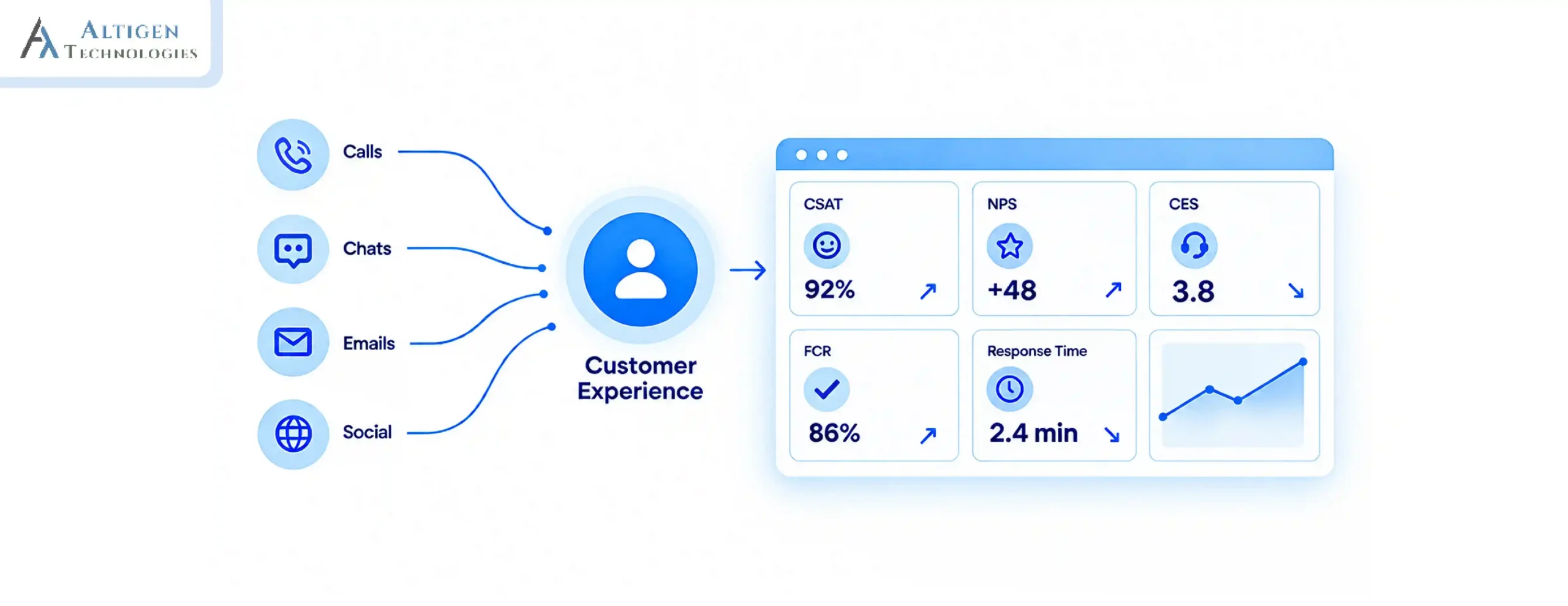
Altigen’s CoreEngage is contact center software built into Microsoft Teams that integrates with Salesforce, Dynamics 365, ServiceNow, Zoho, and HubSpot. Its dashboards make customer experience metrics easy to track, from live wait times and abandoned calls to CSAT and agent performance.
Contact Altigen for a demo to see how CoreEngage integrates with the CRM system and simplifies agent workflows, customer context, and interaction tracking.
Frequently asked questions
When a customer contacts the business, the contact center can identify the customer in the CRM and display the relevant record to the agent. It can also log the interaction, capture the disposition, and add notes or summaries to reduce manual data entry.
Most modern CRMs offer APIs, so a connection between contact center software and CRM is usually possible. Native connectors cover specific CRMs and editions, while others need custom API work or middleware.
You can start with caller details, interaction IDs, dispositions, agent and queue, case status, and conversation summaries. Sync only what supports a defined workflow, and give each field one owning system.
A native integration is a prebuilt connector the vendor maintains. An API integration is custom-built by your team or a partner. Native connectors usually run on APIs too.
Yes. Transcripts, summaries, sentiment, and action items can attach to CRM records once you define where insights live, who can access them, and which record each belongs to.
Implementation time depends on the CRM, contact center platform, data quality, and workflow complexity. A native connector with standard workflows can take less time than a custom API or middleware integration.
Duplicate records, one-way sync, access control, API failures, and low agent adoption. Data cleanup, clear sync rules, and testing prevent most of them.
Compare manual data entry time, screen pop accuracy, logging completeness, sync failures, and agent adoption against a pre-launch baseline. Service metrics help too, though other factors affect them.